Graphic Design and Illustration.

Image of the Month – July 2013

Sculptris_Test

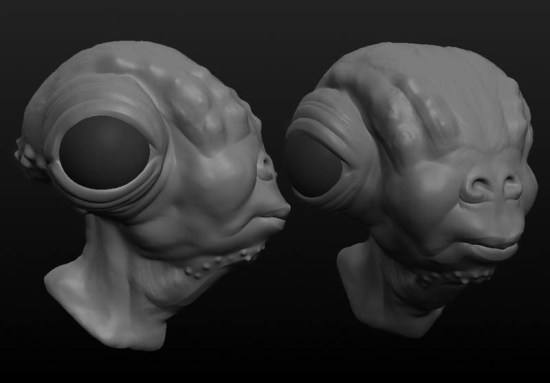
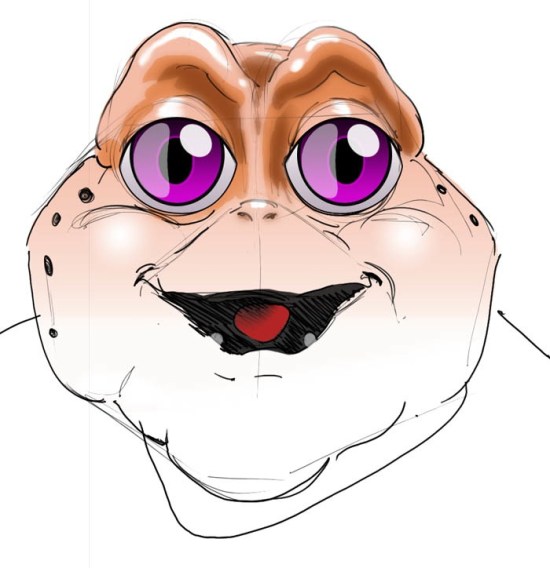
A very quick test of the 3D sculpting package Sculptris. It’s made by the same people as Zbrush. Fewer tools, and a slightly different approach to 3D sculpting on the computer. It’s also still in early Alpha release. I do like the very pared down interface. Though it seems a bit flaky at times. Save often, with lots of intermediate files please!

Next step is to bring this sucker into Blender and either retopologize the model to make it easier to manipulate, or at the very least, get him (or her, I haven’t decided yet) properly textured.

Enjoy.

A+

A_render


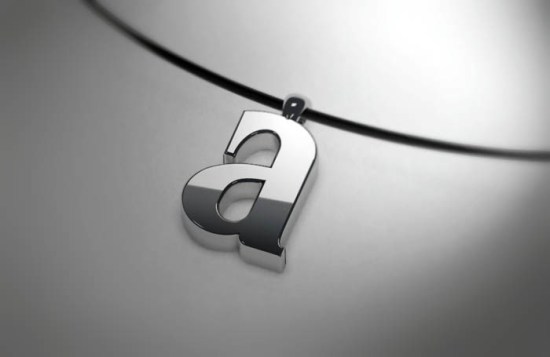
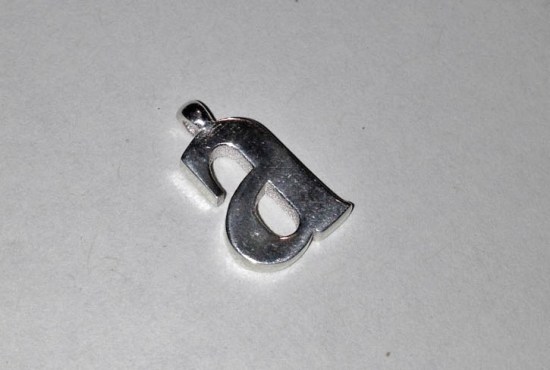
I made this little gift originally for my son’s baptism. Unfortunately, I couldn’t get it made in time for the service, but it was the thought that counts. It arrived by UPS today. Its made in sterling silver by the awesome people over at Shapeways. Since my son’s name is Adien, and a cousin of his (named Andrew) signed a card for him, “From big A to little a”, I thought a pendant with the letter “a” would be appropriate.

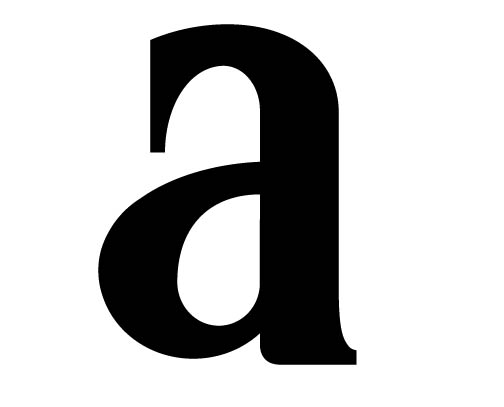
The lowercase “a” is a custom letter designed my me. I was actually going to use a lowercase “a” from the font, Americana Bold Condensed, but the little sketch I made (that I no longer seem to have) to remind me of the font I had chosen looked much better than the actual font, so I used the sketch as a base for my pendant design.


My original sketch.

My original sketch.


Illustrator A1

Adobe Illustrator vector.


Illustrator A2

Showing the editing nodes.


I first drew the outline in Illustrator and then imported the SVG file into Blender. And after a few final touches, I sent the file off to Shapeways to be 3D printed in sterling silver.

Now all I have to do is find a nice chain to go with it (Shapeways cannot 3D print interlocking pieces in metal).


A quick snapshot of the 3D printed piece.

A quick snapshot of the 3D printed piece.


More of the 3D printed experiments can be found here:

A 3D Printed Planter

Sterling Silver Prints

Even more 3D printed stuff

Heavy Engineering

JaegerPoster3

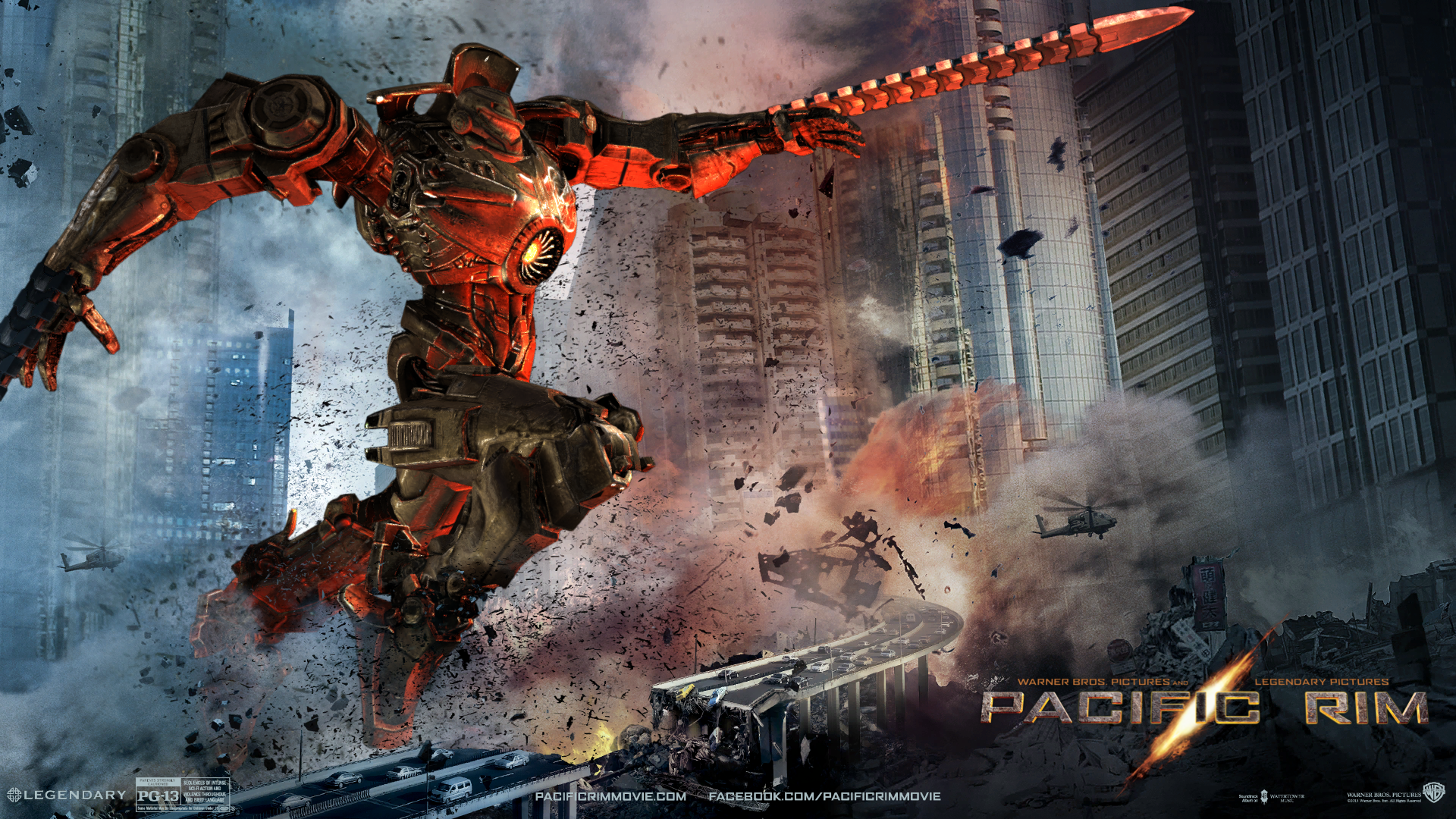
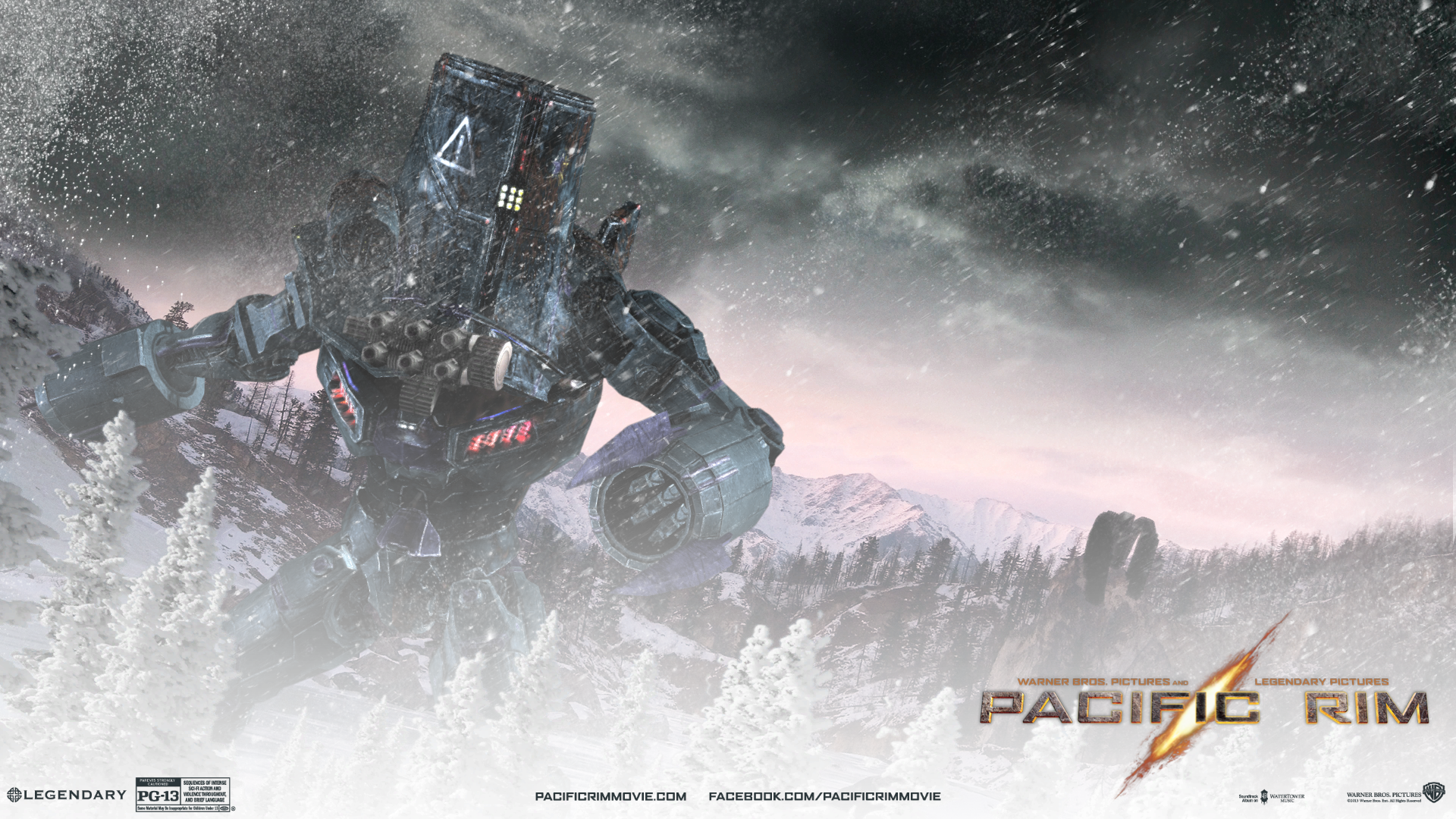
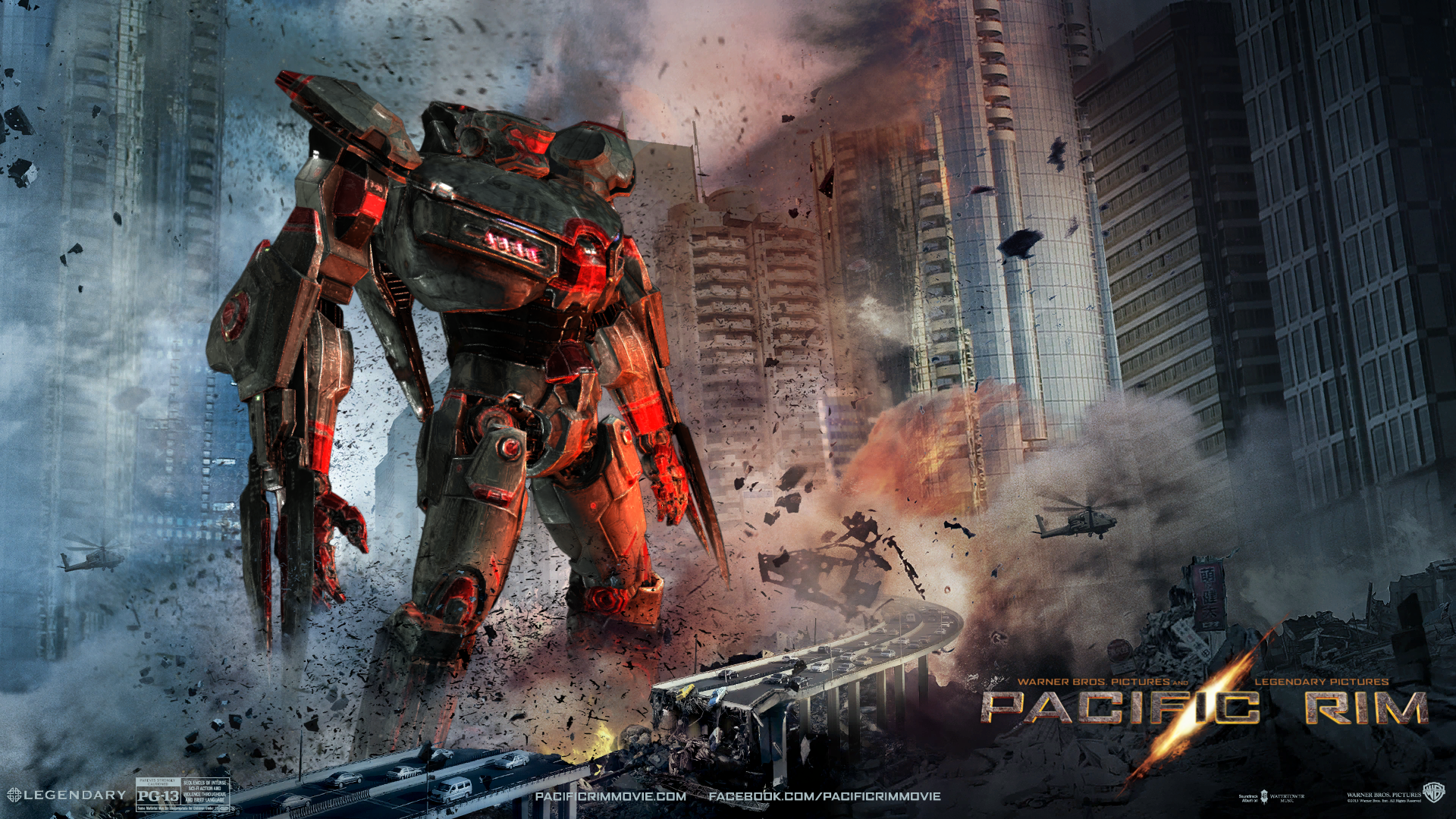
Found this combing thru twitter today. While I have yet to se the movie, Pacific Rim, they have a web app on their homepage that will allow you to design your own Jeager (thier name for the giant fighting robots in the film). The program allows you to choose from a (very) small subset of robot pieces, then colour them and arrange them in various scenes. Is kinda cool, though a bit limiting. Would be nice if you could download the 3D models of these things as well. Was a fun way to end the evening after dealing with my teething son.

You can find the Jeager designer at http://apps.warnerbros.com/pacificrim/designer/us/

JaegerPoster2

JaegerPoster


Anatomy of a Designer – Evernote Part 2

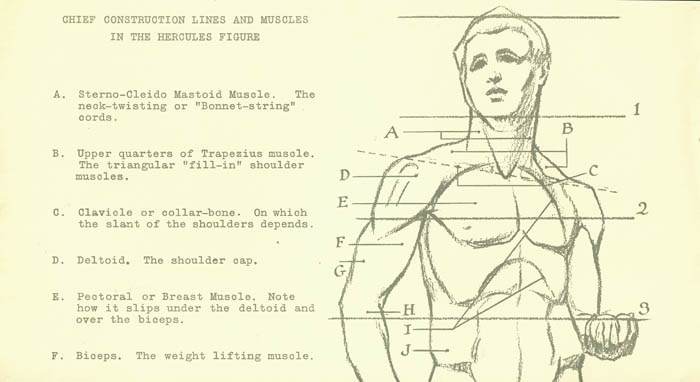
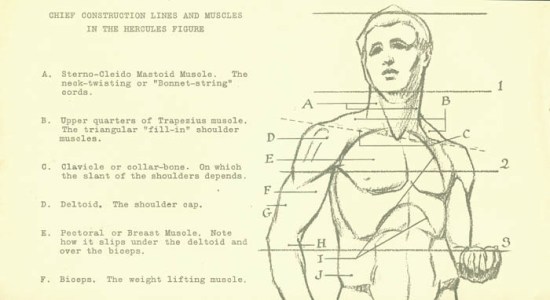
Image scanned from some really old reference material I inherited from my grandfather. Source unknown. Circa the 1930s or 40s.

Image scanned from some really old reference material I inherited from my grandfather. Source unknown. Circa the 1930s or 40s.


This is my follow up to my Evernote as ultimate graphic design swipe file. Read about it here.


In my last post I’d mentioned that I would describe the way I managed to get my swipe file organized. I first setup a whole bunch of different notebooks I could move everything to. I tried to keep the different notebooks as different in subject matter as I could to avoid as much overlap as I could.

The main category I set up was “Design”. I was originally going to call it “Graphic Design”, but I felt that graphic design was a bit too limiting as my interest in design also leans towards product design as well.

I also have notebooks set up for Illustration, Tutorials, Web and Technology, Typography, Quotes, and Photography.

I hesitantly set up a “Misc” notebook as a catchall to hold anything that didn’t fit in any of the other categories. I’m not a big fan of this. Open folders like that tend to get abused and can make it hard to search for stuff afterwards. But I knew there were a few things like recipes and workout tips that I have starred in the now defunct Google Reader that wouldn’t really fit in a designer’s swipe file.


As a side note, once it was getting close to Google Reader’s termination date of July 1st, 2013, I checked out all my data and used the instructions found here to move all my starred items into Evernote. The instructions found here put everything into a local notebook. I then proceeded to move everything to the synced notebooks so I could access these any time I wanted to. This forced me to buy a Pro account in Evernote so I could move all those megabytes online. Hopefully good things will come of that!


Once all my digital files were all sorted, I set about getting as much of my analog swipe files stashed away into Evernote as well. Evernote has a camera feature built in, but it takes files at full resolution, and I don’t need anything quite so ambitious. So I used the app, FastEver Snap. All it does is take photos at a user specified resolution and upload them to Evernote in a specified notebook. Easy peasy.


Tag, you’re it!

I probably won’t do much in the way of tagging. The only main use I think I’ll have for tagging will be to keep track of notes for specific projects. Usually, all I would do is just browse through my swipe file and pull out whatever I think is relevant to the project at hand. Tagging items with a project name rather than making a notebook for each project would then make it easy to find the relevant data, and will keep down the number of notebooks to a minimum.


Recap

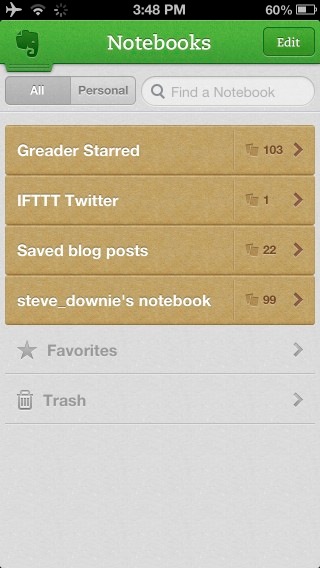
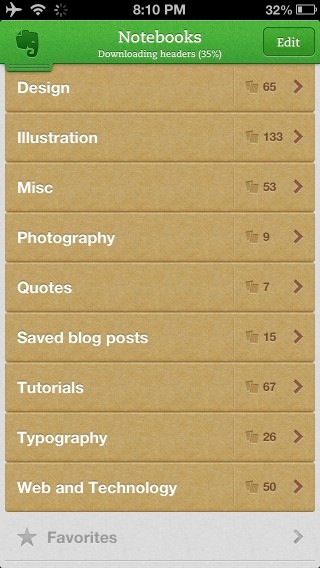
So here’s two screenshots from my iPhone, showing the before and after.


Before. A simple, but disorganized mess. Good luck finding anything in there.


After. Looking much better. I now have a chance to find stuff. Browsing will be easier too. [Evernote for iOS]


For further reading check out these links:

Wikipedia’s article on swipe files.

More on Evernote can be found here.

Anatomy of a Graphic Designer – Evernote

Image scanned from some really old reference material I inherited from my grandfather.
Source unknown. Circa the 1930s or 40s.


What every designer needs

The best piece of advise I ever got from design school was to start up something called a “swipe file”. Basically, it’s a file folder full of bits and pieces of things that either inspire you or might prove useful insight for future projects. Need a fresh new colour scheme for a project? Check the swipe file. Need a background pattern? Check the swipe file. Never designed a three panel brochure before? Check the swipe file before proceeding.

Now just a quick note. It’s called a swipe file, but please understand, it’s only supposed to be for inspiration, not outright copying (i.e. theft). Swipe file was the name my college Computer Graphics prof called it, and I have yet to come up with a better name for it.

My swipe file is getting a little long in the tooth, and is using somewhat outdated technology. Remember, I’m old school. The Internet was really only just starting up and digital technology was just coming into its own when I started as a designer 17 years ago. My swipe file is just a bunch of real papers stuffed in real file folders. Time for a change.


Enter Evernote

evernote
Today, designers have plenty of options for storing little snippets of things that might one day prove useful. And there are a lot of ways young designers can find inspiration and tutorials (blogs, Twitter, and other social media).

I’ve been trying out Evernote since last January. Evernote is primarily used for note taking, but I’ve been using it as a catchall storage system for any tutorials, images, and top-ten-best-of-lists I find on the Internet. Both mobile and desktop variants of Evernote seem to mesh well with my Internet habits. I’ve even managed to get most of my old Google Reader starred items into Evernote, and with some trickery, can get my StumbleUpon likes into Evernote as well. Now if only I can get my Twitter likes into Evernote and we’d be all set! (Turns out this was pretty easy. All I had to do was use the email feature of Evernote and just email the tweets I want to file away. I can even specify what notebook I want the tweets to be stored in. Sweet!)

Unfortunately, since I have used Evernote as a catchall, it isn’t well organized and there’s no tags associated with any of it. Methinks that has got to change.

I also want to try and get my analog swipe file into my digital one. Taking snapshots of everything and then uploading them to Evernote should be a breeze (thank God and Steve Jobs for iPhones!).

Organizing all the notes though, should prove quite the task! Especially tagging. Tagging everything with key words (especially the images) would be really handy, but I have to agree with my wife – tagging sucks. Over the years, I have learned to be pretty organized and anal-retentive, but the idea of tagging hundreds of different links, articles, and images does not sound like my idea of fun.

The good news is I like to keep a pretty simple, yet thorough, filing system for things, so hopefully I won’t have to rely on tagging so much as well curated and easy to make sense of notebook labels.


Wrapping up

I’ll post an update as to how the whole Evernote swipe file reorganization goes and any helpful hints I’ve learned about organizing large volumes of stuff. Anybody with any hints of their own can leave them in the comments section. [Evernote for iOS]


For further reading check out these links:

Wikipedia’s article on swipe files.

More on Evernote can be found here.

Image of the Month – June 2013

20130625-212348.jpg
This month, I tried out the app, Ideas, from Adobe. It’s a vector drawing app for the iPhone/iPad. The app was free when I downloaded it about a month ago. I am not too sure it still is. I didn’t have much time to use it before, and I find the whole “finger painting” just doesn’t do it for me. But for Father’s Day I got a rather nice stylus so it was time to put this drawing app thru its paces.

First off, the iPhone make for a rather small canvas. You can zoom in quite a bit and hide most of the interface which was a big help. And drawing with a capacitive touch stylus isn’t quite the same as drawing with a Wacom stylus or even a real pen. Since capacitive touch screens are designed with a finger in mind, the surface area of the stylus is a bit large. Means trying to connect up different lines you’ve drawn is kinda hard to do. Either long, deliberate strokes or short sketchy lines seem to work best.

Oh, and a quick warning. There’s no revert feature. If you screw up a drawing, it might be difficult to get back to a place where you left off. I’d suggest you always work from a copy of you file rather than the actual file. That way if you screw up royally, you can always go back a copy. I understand 3D people and web people are used to working this way. You also have up to 10 different drawing layers. Doing different parts of a drawing on a different layer might also help with a lack of revert to save.

The drawing tools are pretty basic. There’s a pencil, brush, and marker tool. You can adjust colour, opacity, and brush size. I was wanting some larger brushes. There’s also a paint bucket tool to fill in large areas with colour.

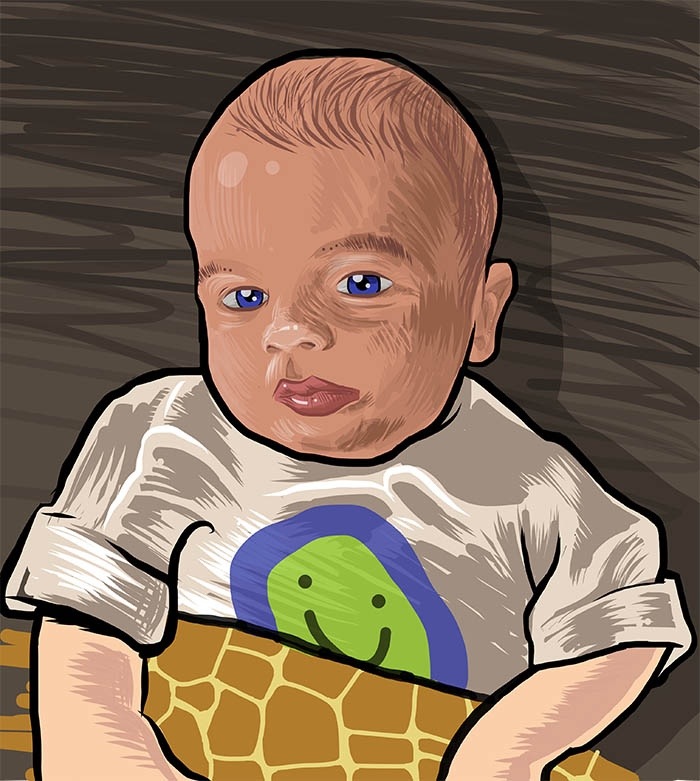
Once done, you can share the image on Facebook, Twitter or email a PDF. I think it can also save your drawing to Creative Cloud if you have it (I don’t). The PDF it generates is huge. The art board was almost 60 inches square! The file was also RGB so print guys beware. Converting vector RGB to CMYK can be a messy affair. The complexity of the file wasn’t too bad. This drawing of my son I made generated quite a few shapes and a lot of anchor points, but was still somewhat acceptable.

Enjoy.


Find out more about Adobe Ideas here:

Adobe Ideas on the iTunes Store

Adobe’s John Nack’s blog

Some really great artwork examples


Fracturing Geometry

Misc_Fractal

Fractals: A Very (very) Brief Introduction

For those who don’t know, Fractals are a branch of mathematics that deal with complex systems. With the development of computer graphics in the 1980s, mathematicians could visually interpret these mathematical curiositities. Visually, fractals generally have the appearance of self-similarity. That is smaller parts generally resemble the larger whole.

Wikipedia has this to say on fractals:

Fractals are typically self-similar patterns, where self-similar means they are “the same from near as from far”. Fractals may be exactly the same at every scale … they may be nearly the same at different scales

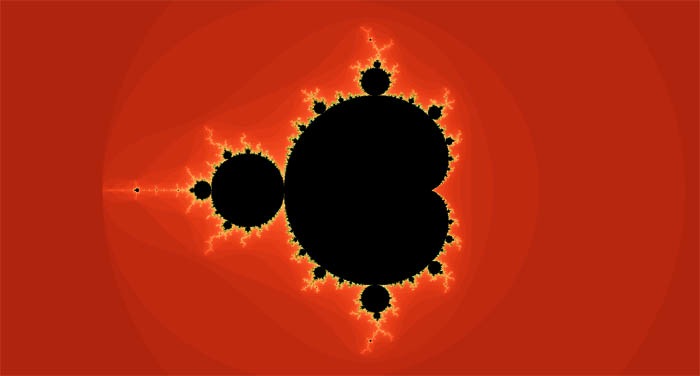
The most famous of these is the Mandelbrot.
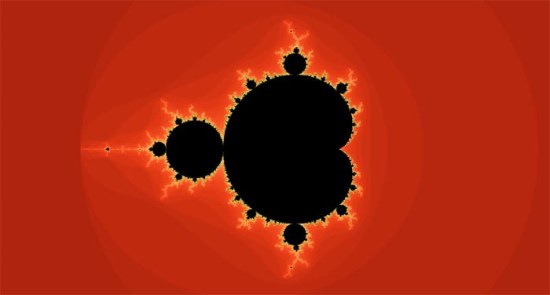
Mandel

I would imagine most people reading this blog would have seen this type of fractal.

I first discovered fractals probably in the early Nineties. There was a program called Fractint that let you generate all kinds of different fractal patterns and colour them in different ways. That was my introduction to them. Fractint is long since defunct, but there are plenty of options these days. Many of them have much more sophisticated ways to colour and visualize fractals. Though I find none have quite the range of fractal possibilities as the original Fractint.

Anyways, I’ve mostly left fractals behind. Sure, the cloud generator in Photoshop is a fractal generator, but that’s just about it. Even with fast computers today, fractal exploration does require a lot of time and patience.

Stumbling In To Fractals Again

Recently, I’ve joined StumbleUpon, an online service for a website discovery service. It recommends pages based on your likes and (hopefully) gets better as the program gets to know your tastes better. There are also quite a few curated lists you can subscribe to as well.

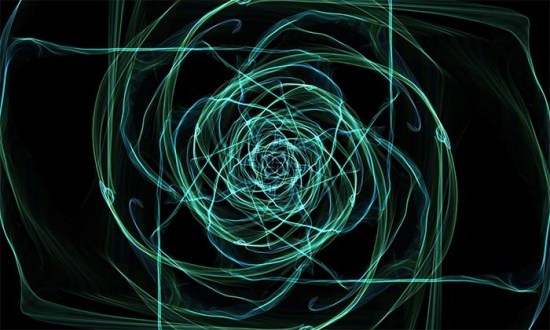
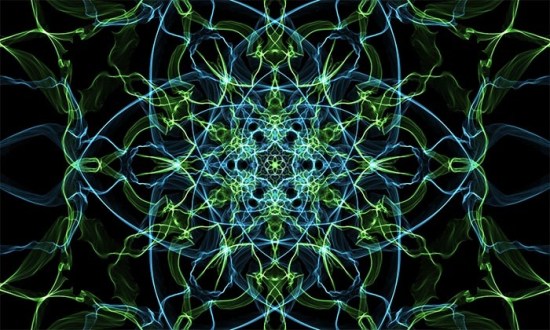
Anyways, the first thing that came up was a program called Silk. It comes in both a desktop and iOS flavour. While technically not quite a fractal explorer program, it does use mathematical algorithms to play around with a user specified lines to create computer generated art. The site offers no explanation, but I assume it is probably something like Perlin Noise that is perturbing the lines you draw. Which definitely puts this in the fractal-esque category. The desktop webapp worked fine in Firefox, but the save feature didn’t seem to work for me in Safari. I imagaine your mileage will vary on the various versions of Internet Explorer there are out there.

A quick check on the App Store showed another app, called Perlin Draw, basically does the same thing as Silk, but as of this writing, the App is free to download and use.

It basically does much the same as Silk, but has a few more drawing styles to choose from. Perlin Draw is also better for free form drawing, Silk is more for funky, kaleidoscope style drawings.

Both apps are quite serviceable and produce images that are of good quality and quite high resolution. Though the Silk program had consistently better quality images than the Perlin Draw program.

A Few Examples

These were from the Silk program:
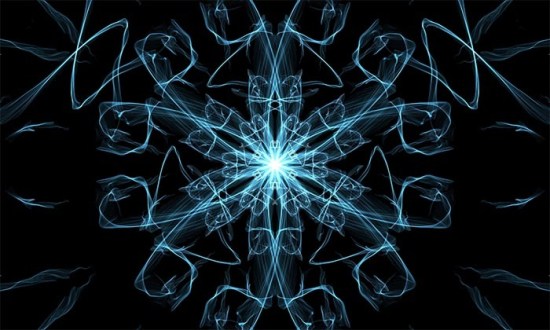
Silk2

Silk

Silk3

And these ones are from the Perlin Draw program:

IMG_0252 IMG_0253 IMG_0260 IMG_0264 IMG_0265 IMG_0268

These two programs have rekindled my interest in this type of artwork. As time marches on, I’ll probably post more of these explorations of algorithmically generated artwork.

Enjoy.


Further Reading

The Wikipedia article on fractals (warning, gets quite technical): http://en.wikipedia.org/wiki/Fractal

Very cool images can be found here: http://www.enchgallery.com/fractals/fracthumbs.htm

For those interested, there’s still a page for Fractint, and that can be found here: http://www.fractint.org/

All the other fractals for this post were drawn using this program (sorry Mac only): https://www.macupdate.com/app/mac/14386/mandelbrot-on-cocoa


Not the Momma!

Not the Moma 01

WIP sketch dedicated to my son, Aiden. He has gotten better at being around his Dad, but the first few days, we did have a few “Not the Momma” moments! Luckily, he can’t hold a frying pan… yet!

Original sketch was recorded using a Wacom Inkling. A little bit of colour quickly thrown in Photoshop. Might finish this guy up this weekend for my Image of the Month.

Enjoy.

Secret Wars!

20130525-145137.jpg

Not exactly Dana Tanamachi (Google her work) but it helps to get the point across. This is what greeted me at The King’s Head Pub.

No, this isn’t a commentary on the 80s Marvel Comics mashup, it’s my take on this past month’s Secret Handshake.

This will be a quick one. I wasn’t there very long. It was my first real outing by myself since Aiden was born (not including going to work) and I was feeling a little guilty going out by myself and leaving my wife with the baby all night. And it was a video game tournament themed evening. While I do appreciate the time and effort going into making games (and playing them), I left my video game playing days long behind me.

The few hours I was there were interesting. It was nice to see a few familiar faces and meet some new ones. There was someone there from the life drawing class I used to attend. I’ve been too busy as of late to attend any of the classes and I’m not too certain I’ll be going back any time soon. I’ve been going to the Winnipeg Art Gallery for quite a few years now and wouldn’t mind a bit of a change. I hear the classes at the Cre8ery are pretty good. I might start going there in a few months once I have a better idea what my routine as a Dad will be.

Once the evening was well underway, the video game tournament started up. All the games were played on a “portable” version of the Winnitron, an open source arcade game I blogged about a while ago. Anything that was on the game system was fair game for the tournament, but everyone seemed to gravitate to Nidhogg, a two person fencing game. I understand competition became quite fierce.

A little after grabbing something to eat, I headed for home. Once I arrived home, I was greeted with some pretty big smiles! Dad has to work hard for those. Kim gets them pretty easy since she’s with him all day, and the little toy frog that is attached to his car seat gets them pretty easily (they are buddies since they go everywhere together) and that just leaves me. The guy who gives him his baths and puts him to bed. The two things he likes he least. I’ll take the smiles whenever and however I get them!

Drawn — R.I.P

20130522-221655.jpg

This past week my RSS newsreader served me up a rather sad little post. Canadian illustration blog, Drawn, is closing its virtual doors. Seems the author is getting too invested in his own illustration career to be sending out posts on the goings ons in the lives and works of various illustrators throughout the world. Not necessarily a bad thing. Nice to see an illustrator being busy.

I first found out about the blog a few years ago by looking over the shoulders of one of my coworkers. Seems most everyday there were new postings showcasing a variety of different artists and styles. It was all very inspiring. While i was only quietly following the blog, I couldn’t help but wonder if I might one day be showcased on Drawn. That would probably mean I’d have to finally settle on a style!

But the past few months the posts were getting fewer and fewer. So few in fact, that I was going to double check to make certain the feed was working. And then I got the final posting from Drawn, explaining everything. Sad news indeed.

Hopefully, we will see Drawn again in some future incarnation. Or maybe someone will pick up the mantle and carry on? In the meantime, anyone know another curator of illustration on the ‘Net? Abduzeedo is pretty good for comic/fantasy/graffiti art. But I always appreciated the broader drawing styles found on Drawn.